CygNet Redundancy Editor
The CygNet Redundancy Editor is a configuration tool where you can define the relationships between the servers, hosts, and sites in your redundancy environment. The Redundancy Editor is also where you set up the trigger conditions that will initiate the auto-failover process for each domain in the redundancy environment. Once all redundant relationships are known by the system, you can execute failover between machines, stop and start sites, and allow servers to switch the domains on which they are running, and support high availability across data centers.
The editor can be invoked from the RSM in CygNet Explorer via a content-menu option, Configure RSM Redundancy, in the RSM service pane, or can be added to a CygNet Studio screen.
Changes made to the redundancy definition made in the CygNet Redundancy Editor are audited by the AUD service when the AUDIT_LEVEL_REDUNDANCY keyword is set in the RSM configuration file.
Notes:
The CygNet Redundancy Editor requires the installation of Microsoft .NET Framework, in accordance with the CygNet System Requirements document.
It can also be instantiated within CygNet Studio from any screen as desired.
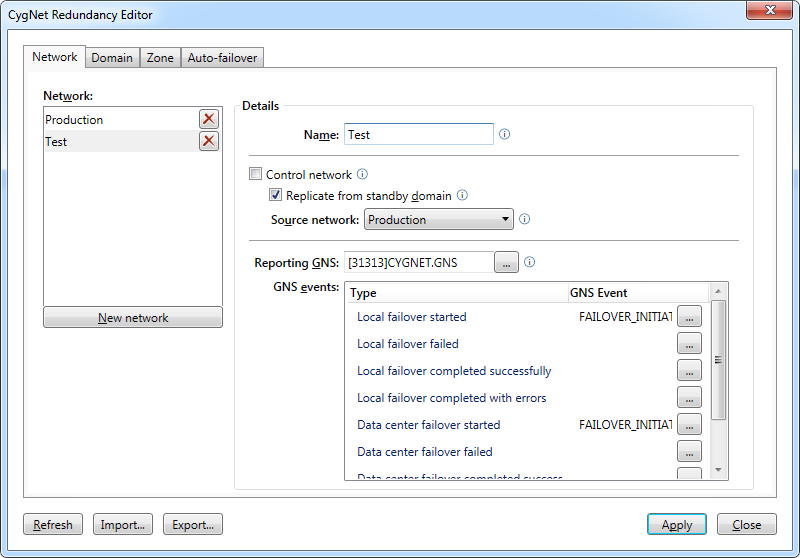
Click the following image to see a sample Redundancy Editor screen:
To Define a Redundancy Definition for your Redundancy Environment
Use the CygNet Redundancy Editor to configure the networks, domains, zones, and auto-failover triggers in your redundancy environment.
- Using CygNet Explorer, select the Remote Service Manager (RSM).
- Right-click in the white space of the RSM service pane and select Configure RSM Redundancy from the context menu.
- The editor opens to the Network page. Configure the following network properties:
- Select an existing network or click New network to create a new one.
- Configure the Name of the network, whether this network is a Control network in the environment, and whether this network will Replicate from the standby domain.
- For networks other than the primary network, specify the Source network from where data is replicated.
- Specify a Reporting GNS and configure the GNS event for each GNS type.
- Click New network to add another network as required.
- Click the Domain tab. Configure the following domain properties:
- Select an existing domain or click New domain to create new one.
- Configure the name of the Domain, the Network to which it belongs, and its Role (Active, Local Standby, or Data-Center Standby).
- Select the Failover trigger that will initiate an automatic failover.
Note: The triggers must be first created on the Auto-failover page.
- Click New domain to add another domain as required.
- Click the Zone tab. Configure the following zone properties:
- Select an existing zone or click New zone to create new one.
- Configure the Name of the zone, the Data center to which it belongs, and the Default domain to which this zone defaults.
- Specify all the Redundant RSMs in the domain. This can be done manually or click Auto-detect to retrieve all RSMs in the domain. Delete any RSMs that are not redundant. Click New RSM to add another redundant RSM.
- Click New zone to add another zone as required.
- Click the Auto-failover tab. Configure the following failover trigger properties:
- Select an existing failover trigger or click New trigger to create new one.
- Configure the Name of the trigger, and whether the failover is in Test mode.
- Specify the Delay (seconds) to wait before the failover initiates.
- Specify the interval Period (in seconds) to wait before checking this failover trigger's conditions.
- Click New trigger to add another failover trigger as required.
- Click Automatic recovery options to mass modify local service recovery options all redundant RSMs.
- Click to Enable service recovery.
- Click to Include recommended Restart action.
- Click to Include recommended Failover action.
- Specify a different Minimum runtime.
- Click Update to modify the automatic service recovery settings for all selected RSMs.
- Click Refresh to update the editor at any time as you work to configure the redundancy definition.
- Click Export to export the contents of the Redundancy Editor to an XML file. See To Import or Export a Redundancy Definition below.
- Click Import to import the contents of an XML file into the Redundancy Editor.
- Click Apply to save the definition and synchronize the redundancy definition across all RSMs in the environment.
- Click Close to close the editor.
Note: All RSMs defined in the redundancy definition must be uniquely named.
To Import or Export a Redundancy Definition
You can import the contents of an XML file into the Redundancy Editor or export the contents of the Redundancy Editor to an XML file.
When importing settings all existing settings are cleared out, as the import is not additive. On import, any misconfigurations will be flagged in red, in the same manner as if you entered them via the user interface. Definition validation occurs as normal when trying to save changes made via an import. The XML file can be modified by hand if desired.
- Click Export to export the contents of the Redundancy Editor to an XML file.
- Specify the file location for the XML file and click Save.
- Click Import to import the contents of an XML file into the Redundancy Editor.
- Browse to the XML file location and click Open. Any existing settings will be removed.
- Check for any misconfigurations and fix as appropriate.
- Click Apply to save the relationships. The relationships will be validated as usual.
- Click Close to close the editor.
More:
 Configuring Networks
Configuring Domains
Configuring Zones
Configuring Auto Failover